

QR Menus for Restaurants and Cafés: How to Set One Up the Right Way
PDF vs interactive menus vs table ordering, photos, allergens, multi-language, printing table codes and staff workflow, plus a step-by-step setup checklist.
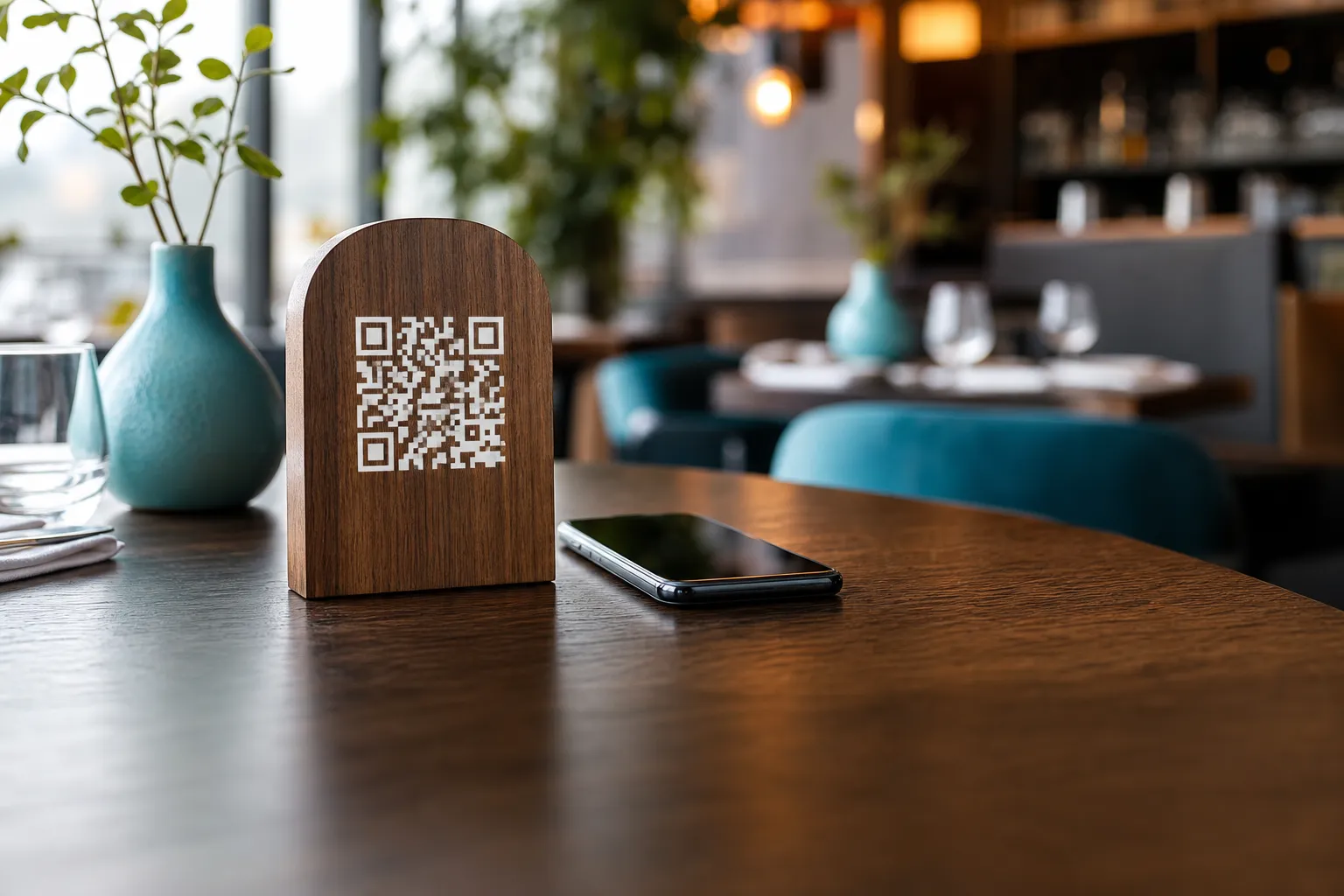
More and more guests sit down and reach for their phone before they reach for the menu. A well-built QR code menu for restaurants lets you change prices in minutes, shows visitors your dishes in their own language and takes pressure off your floor team. A badly built one is a slow PDF, a code nobody can scan and a frustrated table.
This guide walks through the different types of QR menus, their real benefits and honest drawbacks, and everything from content and photos to table placement and staff workflow, finishing with a step-by-step setup checklist.
What Is a QR Code Menu for Restaurants? Three Approaches
"QR menu" can mean very different things. Before you choose a tool, decide which level you actually need.
1. Static PDF menu
Your printed menu is exported as a PDF and the QR code links to the file. It is the quickest to set up, but guests have to pinch and zoom, large files load slowly on mobile data, and every price change means producing a new file.
2. Interactive digital menu
The menu is built as a mobile web page with categories, photos, descriptions, allergen labels and a language switcher. It adapts to small screens and you update it from a dashboard instantly. Guests still order through staff, but they choose far more comfortably.
3. Table ordering
An ordering step is added to the digital menu. Guests send their order straight from their phone and it appears on a kitchen or bar screen. Some systems let each person at the table order separately and split the bill per person. This level brings the biggest efficiency gains, and also the biggest changes to how your team works.
Benefits and Honest Downsides
The upsides are easy to see:
- Instant updates: Prices, sold-out dishes and today's specials change in a few clicks, with no reprinting.
- Richer information: Photos, ingredients, allergens and portion details that would never fit on a printed card.
- Language flexibility: The same menu can be shown in several languages.
- Smoother service: With ordering enabled, servers spend less time writing down and relaying orders.
But be realistic about the limits:
- Guests who prefer paper: Some people, often older guests or anyone with a flat battery, simply want a printed menu. Always keep a few on hand.
- Connectivity: If mobile signal is weak inside your venue, the menu will not load. Offer easy guest Wi-Fi and print the network details next to the code.
- The personal touch: In some concepts, a server explaining the menu is part of the experience. A QR menu should support that conversation, not replace it.
Menu Content and Photos
Your digital menu does not have to be a copy of the printed one. Rewrite it with a phone screen in mind.
- Keep categories simple: Familiar groups such as starters, mains, desserts and drinks help guests navigate quickly. Too many subcategories means endless scrolling.
- Short, appetising descriptions: One or two sentences covering the main ingredients and cooking method. Replace empty words like "delicious" with concrete ones like "wood-fired, with charred peppers".
- Real photos: Skip stock images. Shoot your own plates in daylight against a plain background, and make sure the portion in the photo matches what actually arrives.
- Mind the file size: Compress images for the web. A menu that opens fast on mobile data matters more than a slightly sharper photo.
Price Updates and Product Options
Fast price changes are one of the most used advantages of a QR menu, so turn them into a routine. Decide who updates prices, who double-checks them, and make sure your menu always matches your till or POS. Seeing one price on the menu and another on the bill erodes trust quickly.
Instead of listing every variation as a separate item, set up portion sizes, spice levels and extras as options on a single dish. When the price difference is applied automatically based on the guest's choice, there is less confusion at the table and at the till.
Allergens and Dietary Information
A digital menu is a great place to make allergen information visible. Clearly list common allergens such as gluten, milk, eggs, nuts, sesame and shellfish under each dish, and mark vegetarian, vegan or gluten-free options with recognisable icons or short labels.
Check this information with your kitchen and update it whenever a recipe changes. Adding a line like "If you have an allergy, please speak to our staff before ordering" is good practice. Allergen labelling rules differ between countries and business types, so if you are unsure what applies to you, check with your local food authority or an adviser.
Multi-Language Menus for International Guests
If you serve tourists or a multilingual neighbourhood, offering your menu in the languages your guests actually speak makes ordering much easier. A few tips:
- Do not publish machine translation unchecked. Dish names and regional terms are often mistranslated; have a fluent speaker review them.
- Keep the original name of signature dishes and add a short explanation, for example "Shakshuka — eggs poached in a spiced tomato and pepper sauce".
- Put the language switcher at the very top where it is easy to find.
Placing and Printing Table QR Codes
Even the best digital menu is useless if the code will not scan. Pay attention to the physical side:
- Size and contrast: Print the code large enough for a seated guest to scan without leaning in. Use a dark code on a light background; inverted colours and heavy decoration can confuse some phone cameras.
- A short prompt: Add one line such as "Scan for the menu", plus Wi-Fi details if needed.
- Durable materials: Laminated cards, acrylic stands or table stickers survive wiping and spills. Glossy finishes can reflect light and block scanning, so matte is usually safer.
- Table-specific codes: If you take orders at the table, each table needs its own code so orders land at the right place.
- Test before printing in bulk: Try several phone brands and ages, in your venue's real lighting.
Ordering Flow and Staff Workflow
If you enable table ordering, design the workflow as carefully as the technology. Answer these questions before launch:
- Which screen receives orders: kitchen, bar or both?
- Who updates order statuses such as preparing, ready and delivered?
- How do servers confirm and deliver orders that arrive from tables?
- Is payment taken at the table or at the counter, and how do you handle groups who want to pay separately?
Train your team before going live and collect their feedback during the first weeks. Table ordering does not replace servers; it frees them from note-taking so they can spend more time looking after guests.
Privacy: No Forced Apps or Sign-Ups
If guests have to download an app or create an account just to see the menu, many will give up and wave for a server. A good QR menu opens directly in the browser and asks for no personal details to browse. If you want to collect contact information for offers or loyalty schemes, make it optional, explain clearly how you will use it, and check your obligations under local data protection law with a legal adviser.
Measuring Results
One quiet advantage of a digital menu is data. Review regularly how often the menu is opened, which dishes sell best and when your peak hours are. With that you can:
- Improve the description or photo of slow-selling dishes, or retire them.
- Plan staffing around your real busy periods.
- Watch how price changes affect sales over time.
Alongside the numbers, listen to guests and staff. Some problems show up in conversations long before they show up in reports.
Step-by-Step QR Menu Setup Checklist
- Choose your level: static PDF, interactive menu or table ordering.
- Pick your tool: a ready-made QR menu service, or a custom menu built into your own website.
- Prepare the content: categories, dish names, descriptions, prices and options.
- Shoot and compress your photos.
- Verify allergen and dietary information with the kitchen.
- Translate, then have the translations reviewed.
- Apply your branding: logo, colours and typography.
- Generate table codes, print a test batch and try them on different phones.
- Define the ordering flow and staff roles, then train the team.
- Keep a few printed menus as a backup.
- Soft-launch: start with a handful of tables and gather feedback.
- Review reports regularly and keep the menu up to date.
Choosing a Tool
Options broadly fall into two groups: subscription-based QR menu services and custom solutions built into your own website. Ready-made services suit venues that want to start quickly; custom builds make sense when you have unusual requirements or need the menu to connect with existing systems. When comparing, look at app-free access, ease of updates, language support, reporting, trial periods and contract terms.
One option is Enippy, built by Teyobi. The menu opens in the browser without an app, guests at the same table can order individually with the bill split per person, and orders appear instantly on a live order screen with statuses. It also offers table-specific QR codes, options such as portion size and extras with automatic price differences, multi-language menus, branding with your logo and colours, and visit and sales reports. Subscription plans come with a free trial and no setup fee.
If you would rather have the menu designed as part of your own site, take a look at our web design service or get in touch to talk through what you need.
Conclusion
A successful QR code menu for restaurants is more than a sticker on a table. A menu that loads fast, reads easily, shows accurate prices and allergens and never forces guests to install anything, combined with a well-planned service flow, makes life easier for guests and staff alike. Start small, test, listen and keep improving.
Frequently Asked Questions
Should a QR menu completely replace printed menus?
Usually not. Most guests are comfortable with QR menus, but keeping a few printed copies helps anyone without a phone, with a flat battery or who simply prefers paper.
Is a static PDF menu good enough?
For a very small venue with a menu that rarely changes, it can be a starting point. But PDFs are hard to read on a phone and need a new file for every change; an interactive digital menu noticeably improves the guest experience.
Do I need a separate QR code for each table?
If you only display the menu, one code is enough. If guests order from the table, each table needs its own code so orders reach the right place.
Do I have to show allergen information on a digital menu?
Requirements vary by country and type of business. Even where it is not mandatory, clearly listing common allergens protects your guests; check the exact rules with your local food authority or an adviser.
Do guests need to download an app to use a QR menu?
They should not have to. A good QR menu opens straight in the phone's browser and asks for no sign-up or personal details to browse.
Disclosure: Enippy is a product built by Teyobi.
Related articles
Using QR Codes to Collect Customer Details: Forms, Digital Cards, and Campaign Pages
A practical guide to collecting leads with QR codes through forms, digital business cards, and campaign pages—without making the experience clunky.
How to Convert an Image to SVG for Cricut, Silhouette and Lasers
Turn a PNG or JPG into a clean, cut-ready SVG: choosing images, single-colour vs layered files, settings, fixes for common problems, file formats and copyright.
What Is a Dynamic QR Code? Static vs Dynamic and When to Use Each
What a dynamic QR code is, how it differs from a static one, the honest trade-offs, where each works best, plus design, security and a decision checklist.